

Updating the Released_software.xml Configuration File - For PSCAD Version 5.1 and Newer
Updated the file July 22, 2026
A new configuration file called Released_software.xml was released starting at PSCAD v5.1.0. In conjunction with the new compiler detect utility, the Released_software.xml file allows PSCAD to detect and use installed and supported third-party software, including GFortran compilers, Intel FORTRAN compilers, Microsoft Visual Studio, and MATLAB.
The new configuration file is used in PSCAD v5.1 in place of the two configuration files in PSCAD v5.0 and older:
- The MATLAB configuration file (matlab_versions.xml), and
- The FORTRAN compiler configuration file (fortran_compilers.xml)
The new configuration file also provides a new capability added to PSCAD v5.1. This capability allows the user to select the desired combination of third-party compilers, Intel Fortran compiler, Microsoft Visual Studio, and Matlab, in the Dependencies tab of the Application Options dialog.
The configuration file, installed alongside PSCAD, can become outdated as newer versions of the third-party compiling software are released. Consequently, newer compiling versions might not be detectable by PSCAD, and therefore not useable.
This article provides the instructions for detecting when the configuration file is outdated, and for updating the file either automatically or manually.
Note - These instructions are applicable for PSCAD v5.1 and newer. If using v5.0 and older, please refer as follows:
- For updating the FORTRAN compiler configuration file, refer to this article.
- For updating the MATLAB configuration file, refer to this article.
1. Detecting Whether the Configuration File is Outdated
- Download and run the newest version of the Fortran Medic utility as per Steps (a) to (d) of this article.
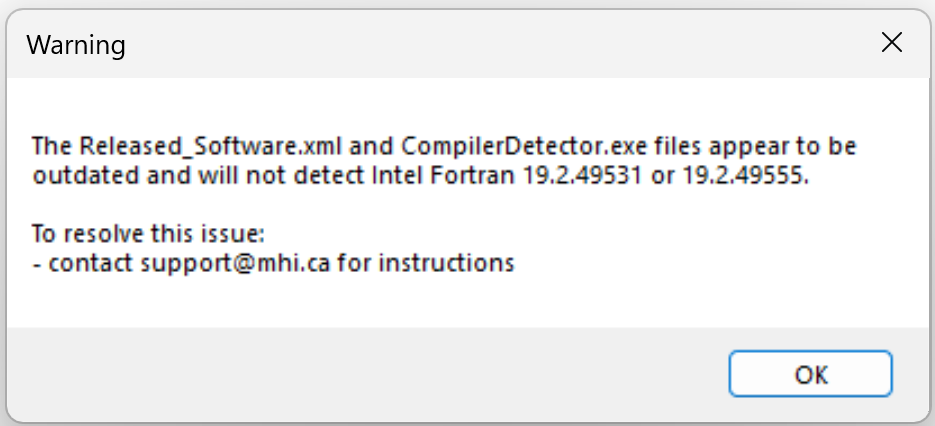
Note: At Step (c), ensure to select Yes to allow the Fortran Medic utility to be able to make changes to your machine. - When the Fortran Medic utility has finished gathering information about your system, scroll down to the PSCAD v5.1+ installation heading, and if an error similar to the following displays, then proceed as per Step 2 or 3 below.

Note - Right-clicking on this error will display a message similar to the following:
2. Automatic Update of the Third-Party Software Configuration File
Not available at this time
3. Manual Update of the Third-Party Software Configuration File
Note - This procedure will require Windows Administrator permissions.
- Locate your outdated "Released_Software.xml" file. The file should be located in a path similar to the following:
C:\Program Files (x86)\<PSCADVersion>\
C:\Program Files (x86)\PSCAD\<PSCADVersion>\
- Modify the name of the outdated "Released_Software.xml" file.
For example, change it to "Released_Software_1.xml"
- Obtain the updated Released_Software.xml file, in one of the following manners:
- Request the most recent version of the file from our support desk (support@mhi.ca), or
- Download the file from the link at the bottom of this article, and unzip the file.
Note - This might not be the most recent version.
- Unzip the updated file, and save the unzipped file to a location on your machine where you have User permisions (e.g. Desktop, Downloads).
- Move the unzipped/updated file to your PSCAD program file path, as determined in the first bulleted paragraph above.
- Close any instances of PSCAD, launch PSCAD, and the updated file should be detected and used by the application.