The standalone License Manager service is used to manage the seats for a lock-based license. This service is only used in the following situations:
The License Manager should never be installed alongside a one-seat license that is hosted on the PSCAD client machine. Instead, self-licensing is recommended in this case for simplicity, in which the License Manager software embedded in the PSCAD application manages the license.
Refer to Lock-Based Licensing for further details.
The standalone License Manager is installed using the Installer utility. Following the installation, two utilities will need to be run, to configure the License Manager and to install the license database file.
The License Manager installer may be downloaded either from MyCentre or as per this article. After unzipping the files, run the Installer.exe file from the main folder to launch the Installer utility. The installation will proceed to completion, and may be closed.
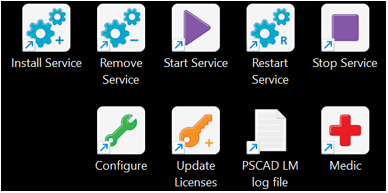
The following shortcuts will be created on your desktop:
Furthermore, the PscadUsage.txt file will be created, and saved to the location listed below. Refer to Reviewing Licensing Information for details on reading this file.
C:\ProgramData\Manitoba HVDC Research Centre\LicenseManager\
To configure the License Manager, launch the new Configure shortcut from your Windows Desktop, and select your preferred configuration:
Selecting This machine only (private) on the Access tab limits licensing to the current machine, and will not be shared with other client machines.
Selecting Authorised Networks (protected) on the Access tab restricts licensing to client machines residing on specified networks. If selected, the networks must be specified on the Networks tab.
Selecting Everyone (public) grants licensing to any client machine able to reach the server.
From the Actions menu, select Save Settings and Exit.
To install your license database file, launch the “Licenses” shortcut from your Windows Desktop, then refer to Adding/Modifying Licenses.
Please refer to the Knowledge Base article: Setting up the License Manager, for details on installation and setup.
The License Manager may be started using either of the Windows Desktop shortcuts, Start Service or Restart Service.
The License Manager may be stopped by selecting the Windows Desktop shortcut or Stop Service.
Once the standalone License Manager is installed and running, it is recommended that the person operating the designated License Manager server maintains the software and ensures proper operation.
The standalone License Manager shall start automatically when the server is booted up and runs as a background process. All license usage is tracked in the PSCAD Usage Log, and all License Manager events and transactions are recorded in a log file entitled Lmgrd-log.txt. When troubleshooting, the Lmgrd-log.txt file, on the machine hosting the License Manager, along with the PscadLmgr.txt file on the client workstation, contain important information to help diagnose licensing issues. All three log files, the Environment Medic log file listed below, are located as specified in Reviewing Licensing Information.
If any licensing issues cannot be diagnosed from the licensing log files, please feel free to request assistance from PSCAD Support Services. Include a detailed description of the problem, and attach the following log files, which are found as specified above, to your e-mail:
The Lmgrd-log.txt file from the server.
The PscadLmgr.txt log file from the client workstation.
An Environment Medic Log file from both the server and client machines.