License Key/License Database File
Configuring Licensing Settings
Reviewing Licensing Information
Lock-based licensing may be used with the PSCAD Professional and Educational editions. Validation is achieved through a license database file and hardware lock. Licensing is managed using License Manager software, which can be used in two different configurations, either using the separate standalone service, or using the PSCAD embedded tool.
A lock-based license contains seats, which represent the number of instances of PSCAD that may be run simultaneously on one or more workstations. For example, a two-seat license will allow up to two instances of PSCAD to be run simultaneously. Each time PSCAD is opened or closed, a seat will be assigned/consumed or relinquished, respectively.
Lock-based licenses may be used in two different configurations: Network Licensing and Local Licensing. The one that is best for your purposes depends on how PSCAD is utilised. The following sections describe each licensing style in detail.
With network licensing, the license is installed on a server and shared with PSCAD client machines (and the host) over the facility networks. Licensing may also be shared over the internet with client machines, connected to the facility, via virtual private network (VPN).
Network licensing is set up by installing the standalone License Manager software, the license database file and hardware lock on a server machine. When an instance of PSCAD is started somewhere on the network, licensing will be requested to the License Manager. The License Manager ensures that the license is authorised according to the license database file and lock, and if available, shares a PSCAD seat with the client machine. The seat will allow the user to run one instance of PSCAD. When PSCAD is closed, the seat is relinquished back to the License Manager.
The number of users that can access PSCAD simultaneously depends on the number of seats on a license. For example, if a license contains two seats for the PSCAD Professional Edition, then at most, two users may each use one instance of the Professional Edition at the same time, or one user may run up to two instances of PSCAD on his or her workstation. The following diagram illustrates how a two-seat network license may be shared with two users simultaneously.
NOTE: The number of licenses and seats owned does not limit the number of PSCAD installations in a facility. PSCAD can be installed on any number of workstations.
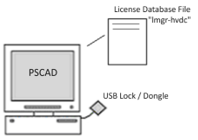
With local licensing, the license database file and hardware lock are installed directly on the PSCAD client machine. Two different types of management software are available for managing the license, depending on the number of seats on the license.
If the license contains only one seat, self-licensing is recommended, in which the embedded License Manager in PSCAD is used to manage the license. Or, if the license contains more than one seat, the standalone License Manager is recommended to be installed and used to manage the license. When an instance of PSCAD is started, the license managing software ensures that the license is authorised according to the license file and lock, and if available, grants a PSCAD seat. The seat will allow the user to run one instance of PSCAD. When PSCAD is closed, the seat is relinquished back to the managing software.
The number of instances of PSCAD that may be run on the workstation simultaneously depends on the number of seats on the license. For example, if a license contains two seats for the Professional Edition, then up to two instances of the Professional Edition may be run at the same time when using a License Manager on that machine.
EXAMPLE 1:
A license containing one seat for the Professional Edition is set up on a client machine. The diagram below illustrates how PSCAD would use self-licensing. Note the absence of the License Manager as a separate program.
EXAMPLE 2:
A license containing two or more seats for the Professional Edition is set up on a client machine. The diagram below illustrates how PSCAD would be managed using the License Manager.

NOTE: The number of seats on a license does not limit the number of PSCAD installations in a facility. PSCAD can be installed on any number of workstations. Simply, PSCAD and the license database file will be installed on each machine, but licensing will be authorised on the machine on which the hardware lock is currently plugged in.
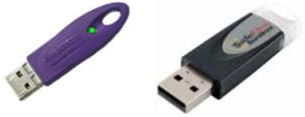
The embedded and standalone License Manager software for network and local licensing supports the SafeNet Sentinel SuperProTM USB, USB Port Hardware Lock (also known as a USB lock or dongle). The following image shows the current lock, which comes with an internal microSD memory card containing the installation files and license text file:

The following images are samples of older locks that may still be in use by some organisations:
The USB hardware lock is compatible with all Windows platforms, on which PSCAD and the License Manager are supported.
The license key is an ASCII text file named license.txt. The license key is used with both network and local licensing, and is required for both the Professional and Educational Editions. This file contains encrypted information designed to act as a key to adding or upgrading a license on a workstation, specifically by creating and updating a license database file. Together, the hardware lock and license database file are used directly by either the embedded or standalone License Manager to validate a request for a license.
The upgrade key is an ASCII text file named upgrade.txt. It is used to renumber an existing license, due to specific changes to the license products. When applied, the authorized products are modified, the hardware lock is renumbered to the new license number, and a new license database file, with the new license number, replaces the existing one.
When using a license for either local or network licensing, the corresponding license database file may be added as a new license, or a pre-existing license, and may be modified in the following circumstances:
Improving a License: Improvements may include adding a seats, updating a seat from the Educational to the Professional Edition, updating a Single User License (SUL) (no longer used) to a Multi User License (MUL), or converting a temporary license to a permanent one. The license database file will be replaced with a new file; there would be no change to the hardware lock. Please note that the license will not be renumbered in this case.
Renumbering a License: When a license is renumbered, the hardware lock is modified and the license database file is replaced. This is typically performed when removing products (e.g. a PSCAD seat), downgrading elements, or upgrading to a significant software update (e.g. upgrading from PSCAD X4 to V5).
The License Update Utility is used to install the license database file either on the license server, for network licensing, or on the client machine, for local licensing.
Adding a new license or improving an existing license on the server or client machine may be performed as follows:
If applicable, any instances of PSCAD must be exited.
If applicable, the License Manager service will be auto-stopped by the License Update Utility (or select the Stop Service shortcut in the Windows Desktop).
It is optional to have the corresponding hardware lock plugged in.
You will be provided with a new license.txt file. Save this file to a convenient, local directory (e.g. C:\temp).
Launch the License Update utility. This utility is installed alongside the License Manager and PSCAD, with a convenient Desktop shortcut created, called Update Licenses. Or the License Update Utility may be downloaded from this page, and unzipped and run.
If adding a new license to a machine, and if a license database file is already installed on this machine, remove the existing file by selecting Delete license databases from the Actions menu, and select the option to proceed when prompted.
Install the new license.txt file by selecting Enter license keys from the Actions menu, browsing to the license.txt file when prompted, and selecting Open.
The new or updated license database file will be installed.
PSCAD may be licensed by configuring it, then activating the license.
If applicable, the License Manager service will be auto-started by the License Update Utility, and a notification will be displayed. If it has not auto-started, it may be restarted by selecting Restart Service from the Windows Desktop.
The License Update Utility is used when renumbering an existing license database file and hardware lock either on the license server, for network licensing, or on the client machine, for local licensing. This utility, along with an upgrade key, a new license key, and a number of other files will be provided by the MHI Sales Team.
Renumbering an existing license on the server or client machine/s may be performed as follows:
If applicable, any instances of PSCAD must be exited.
If applicable, the License Manager service must be stopped (select the Stop Service shortcut in the Windows Desktop).
Ensure the hardware lock is plugged in.
Download the provided update files, and unzip them to a convenient, local directory (e.g. C:\temp).
From the unzipped files, select LicenseUpdate.exe.
When the License Update Utility displays, go Actions | Upgrade license keys and lock.
When prompted, browse to the Update.txt file, then select Open.
When prompted, browse to the License.txt file, then select Open.
Both the license database file and the hardware lock will be updated. Also, if the License Manager service is installed, it will be restarted automatically (or select the Restart Service shortcut in the Windows Desktop).
PSCAD may be licensed by configuring then activating the license.
If you encounter any issues during this process, contact us at PSCAD Support Services.
NOTE: If using a standalone license manager, it is recommended to always use the latest version. The latest version may be downloaded from this article or obtained from PSCAD Support Services.
License settings may be set or altered without the need to close and reopen PSCAD in a different mode. The settings may be configured directly from within PSCAD, in the Licensing Menu.
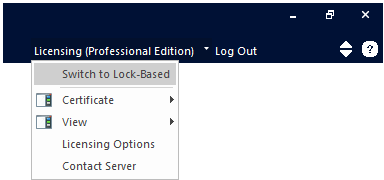
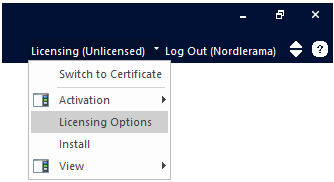
Select Switch to Lock-based (for lock-based licensing) or Switch to Certificate, as applicable from the Licensing menu.
|
To Switch to Lock-Based Licensing (Licensing is currently configured for Certificate Licensing) |
To Switch to Certificate Licensing (Licensing is currently configured for Lock-Based Licensing) |
|
|
|
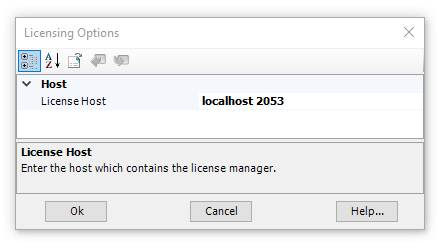
To configure PSCAD to use local licensing, select Licensing Options from the Licensing menu, enter localhost 2053 in the License Host field, then select Ok to apply the selection and close the dialog.
|
|
|
|
Select Licensing Options |
Licensing Options Dialog |
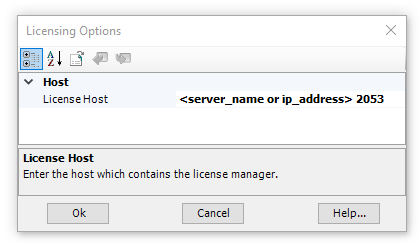
To configure PSCAD to use network licensing from a server, select Licensing Options from the Licensing menu, enter the name or IP address of the server, followed by a space and 2053 in the License Host field, then select Ok to apply the selection and close the dialog.
|
|
|
|
Select Licensing Options |
Licensing Options Dialog |
A license to run PSCAD may be activated by launching PSCAD from the Windows Desktop shortcut, configuring the license, and selecting the Edition from the Activation menu.

The following requirements must be met to activate a license:
Requirements for Network Licensing:
The standalone License Manager is installed and configured on the server.
The hardware lock and license database file are set up on the server.
The PSCAD software has been installed on the client machines.
Requirements for Local Licensing:
The licensing requirements are met.
If the license contains multiple seats, the standalone License Manager is recommended to be installed and configured on the client machine, to be able to use all the seats.
The hardware lock and license database file are set up on the client machine.
The PSCAD software has been installed on the client machine.
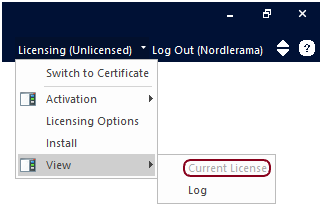
At any time, you can review the status of your active license. From the Licensing menu, select View | Current License:
Licensing information and activity are logged to help with licensing setup and diagnostics.
The Environment Medic Utility detects whether the license database file and hardware lock are properly installed.
It is recommended to always use the latest Environment Medic Utility, which may be downloaded from the following link:
https://ptcstoragegroup.blob.core.windows.net/utilities/FortranMedic.zip
The other option is to use the utility that was installed alongside PSCAD, which will not be the latest version. This utility may be run from within the PSCAD application as shown below:

When the Environment Medic utility displays, ensure that the hardware lock is securely plugged in.
Then, go Actions | Start, and wait for the results to display (this can take up to a few minutes).
Scroll down to the Lock-based Licensing heading. If detected, the PSCAD license number assigned to the USB lock and license database file will be displayed, as shown in the following example:

The findings may be saved into a log file that can be forwarded to our support desk for evaluation. Go Actions | Save messages as and then browse to a folder to which the log file will be saved. The file name and location will be listed at the bottom of the utility. This is an important file to include when contacting PSCAD Support Services when experiencing lock-based licensing issues.
On a client machine, all lock-based licensing activity occurring on that machine is logged to the PscadLmgr.txt log file. The logged errors may be used to determine the cause of a licensing issue, or the log file may be forwarded to PSCAD Support Services for evaluation.
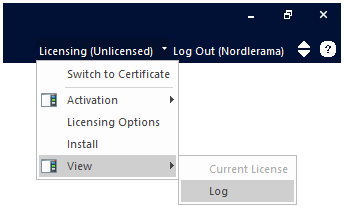
The PscadLmgr.txt file may be displayed as shown:
This file is maintained in the following path:
C:\ProgramData\Manitoba HVDC Research Centre\LicenseManager\
If PSCAD is installed, the PscadCert.txt file will be created and maintained. Refer here for more details.
If the standalone License Manager is installed, all activity pertaining to managing lock-based licensing is logged to the Lmgrd-log.txt log file. The logged errors may be used to determine the cause of a licensing issue, or the log file may be forwarded to the PSCAD Support Services for evaluation.
On the machine hosting the license manager, the Lmgrd-log.txt file may be displayed from the Windows desktop shortcut: Log File.
This file is located in the following path:
C:\ProgramData\Manitoba HVDC Research Centre\LicenseManager\
If the standalone License Manager is installed, the usage of lock-based licensing is logged to the PscadUsage.txt file. This file may be displayed from this location:
C:\ProgramData\Manitoba HVDC Research Centre\LicenseManager\
The following is a sample line from a PscadUsage.txt file:

Description:
User ID: This is the Windows login user ID of the PSCAD user.
Edition: Can be either Pro (Professional) or Edu (Educational).
Location: Local indicates the license is activated on the license host machine. Remote indicates the license is activated on a client machine.
Seat ID: This is the dynamic ID of the granted seat, and appears in the license manager log file (lmgrd-log.txt), and in the PSCAD usage log file (PscadLmgr.txt)
No. Seconds: The duration of the license checkout period (seconds).
Start time: When the seat was granted.
End Time: When the seat was returned.