Introduced in PSCAD V5, the resources branch replaces the prior Additional Source files (*.f, *.for, *.f90, *.c, *.cpp) and the Additional Library (*.lib) and Object (*.obj/*.o) Files project settings fields, as well as the older File Reference component, as a means to attach, link or display files. It provides a single-entry point for adding, deleting and managing all external, dependent files.
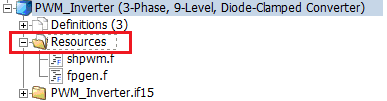
A resources branch is inherent to every project, both case and library. It may be accessed by expanding any project branch in the workspace:
In addition to added source and linked binary files, most other file types can be appended to the resources branch. These may include EMTDC Output (*.psout) files, Python (*.py) files, Executable and Batch (*.exe and *.bat) files, Microsoft Office files, picture files, *.pdf files, etc., that are not linked when the project is compiled, but are associated with the project in some way. Note that the resource branch utilises the current operating system settings to associate a file. So for example, to view a Microsoft Word file, you must have Word installed and the corresponding files associated with the application.
NOTE: If you have just imported your v4.6 or prior project into PSCAD V5, all file resources previously specified in the Additional Source files (*.f, *.for, *.f90, *.c, *.cpp) and the Additional Library (*.lib) and Object (*.obj/*.o) Files project settings fields should have automatically been placed in the resources branch. See Importing X4 Projects to V5 for more details.
Right-click directly on the resources branch, to bring up the resources branch context menu. The primary purpose of this menu is for adding resource files:
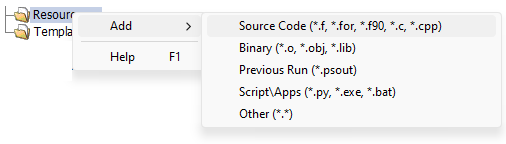
The following list describes the functions of this pop-up menu:
Add: All these menu items launch the Open File dialog, with file type set to whichever item was selected. Simply navigate to the chosen file, select and press the Open button.
Source Code (*.f, *.for, *.f90, *.c, *.cpp): Files intended to be included in the project build, as direct source code.
Binary (*.o, *.obj, *.lib): Files intended to be included in the project build, as linked binaries.
Previous Run (*.psout): EMTDC output files for viewing or paying back previous simulation runs. See Previous Run Playback .
Script/Apps (*py, *.exe, *.bat): Python script files or other application or batch files.
Other (*.*): Any other file, such as *,pdf, *.docx, etc. that may be associated with the project in any way. These files are not included in the project build.
Help: Launches the PSCAD Online Help system, directly to this topic.
Right-click on any resource in the resources branch, to bring up the resource context menu:
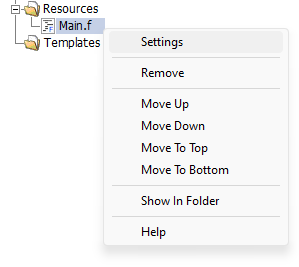
The following list describes the functions of this pop-up menu:
Settings: Select this option to launch the Resource Settings dialog (see below).
Remove: Select this option to remove the resource file from the list (does not delete file), and thereby remove any links to the project itself.
Move *: Resource files may be moved up or down in the list.
Show in Folder: Select this option to launch Windows file explorer directly navigated to the folder, in which this resource file resides.
Help: Launches the PSCAD Online Help system, directly to this topic.
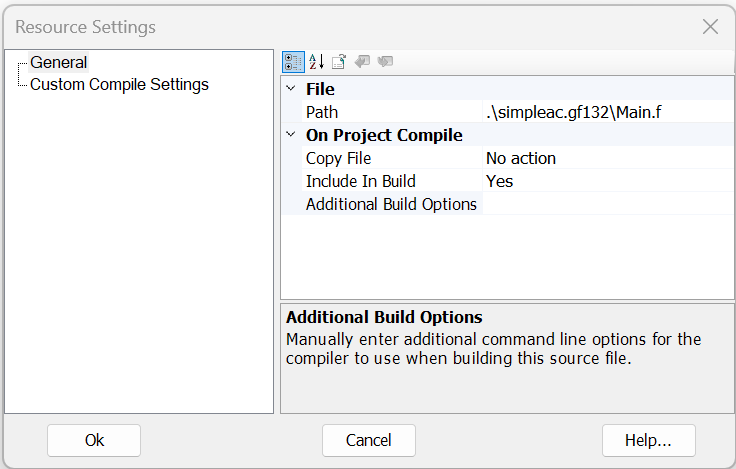
Right-click on any resource in the resources branch, and select Settings... to bring up the Resource Settings dialog.
|
|
|
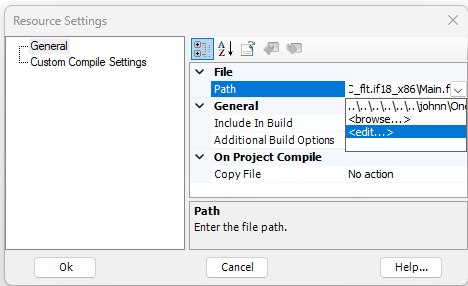
The following describes the parameters available in this dialog:
General:
Path: The path to the file location. This path will be set automatically when a resource is added, or when importing a project, last saved in an older version. Note that the file path can be modified at any time to use macros, set an absolute path, or setup to make use of user library folders.
Copy File: The default is No action. You may also select the option To temporary folder, which will ensure the file is copied to the project temporary folder whenever the project is compiled. This is useful, for example when linking to dynamic link library (*.dll) files, or whenever a resource needs to reside in the temporary folder during a simulation.
Include in Build: If the resource file is an object, library or source file, use this option to toggle whether or not the file will be included in the project build.
Additional Build Options: Manually enter additional command line options for the compiler to use when building this source file.
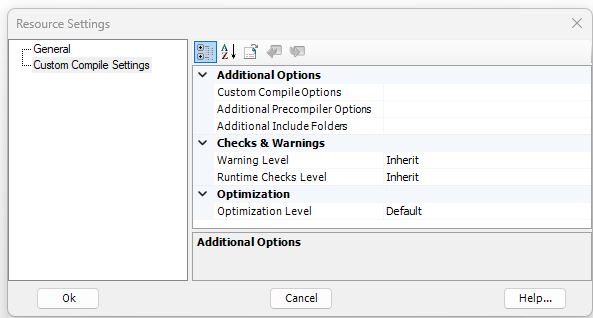
Custom Compile Settings:
Custom Compile Options: Enter the command line options to customise compilation of this specific resource file.
Additional Precompiler Options: Enter compiler command line, precompiler options to customise compilation of this specific resource file.
Additional Include Folders: Designated additional compiler folders, from which to find compile time resources.
Warning Level: Select the level to use for displaying warnings, while the simulation is building.
Runtime Checks Level: Select the level of checks to perform during runtime. Note this may affect simulation performance.
Optimisation Level: Increasing optimisation level may improve simulation runtime performance, but at the cost of additional compile time. Debugging is best performed with optimization off.
Macros and relative paths help to keep resource file paths flexible and transferable. These concepts should always be used instead of absolute paths whenever possible.
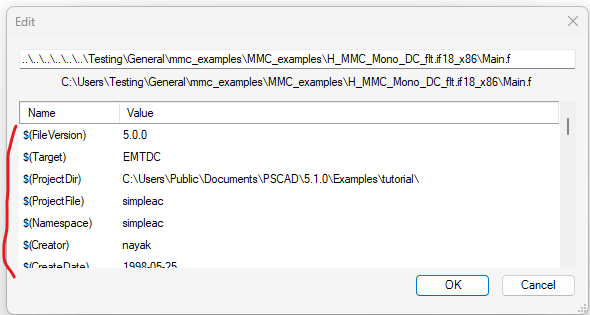
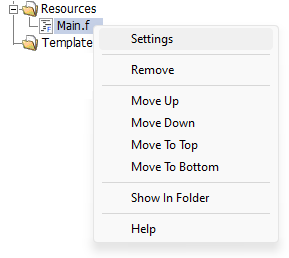
There are dozens of defined macros in PSCAD that may be utilised to make resource path designations more dynamic and convenient. A macro may be inserted directly as part of a path, which will be parsed and converted to an absolute path or string dynamically, based on the current state of PSCAD, and/or the computer being used. To see the complete list of available macros, follow these steps:
 |
 |
|
|
Open the Resource Settings Dialog |
Click Edit Path |
Scroll the List (Present Value of Macros Displayed) |
Relative Paths
In PSCAD, all relative file paths are relative to the corresponding project file location. Relative paths, as opposed to absolute paths, are the best way to track files, and should be used whenever possible.
Relative path symbol definitions:
|
.\ |
File location is in the same folder as the project. This symbol is optional. For example, .\my_file.f is equivalent to my_file.f. |
|
..\ |
File location up one folder level from where the project file is located. |
For more detailed information on macros, see Complete Macro List.
A compiler specific folder convention exists for the purpose of specifying compiler specific object (*.obj or *.o) and static library (*.lib) files. Object and static library files can be compiled with one or more different Fortran compilers, and then placed in a named sub-folder within the specified User Libraries Folder. Then, the user may freely switch between compilers without the need to re-specify the files.
The user must manually add these sub-folders to the main folder specified by the User Libraries Folder option (in the Dependencies category of the Application Options dialog). Each sub-folder represents a specific Fortran compiler, and the same library or object file (compiled by the corresponding compiler) may be placed in these sub-folders. Since there are different types of Fortran compilers that may be used with PSCAD, there can be different sub-folders specified. These must be named as follows:
gf81 GFortran compiler version 8.1 (64-bit))
gf81_x86 (GFortran compiler version 8.1 (32-bit))
gf132 (GFortran compiler version 13.2 (64-bit))
gf132_x86 (GFortran compiler version 13.2 (32-bit))
if12 (Intel Fortran compiler version 12.1, 13 & 14)
if15 (Intel Fortran compiler versions 15, 16 and 17 (64-bit))
if15_x86 (Intel Fortran compiler versions 15, 16 and 17 (32-bit))
if15_vs2010 (Intel Fortran compiler versions 15, 16 and 17 (64-bit) (Visual Studio version prior to 2015))
if15_vs2010_x86 (Intel Fortran compiler versions 15, 16 and 17 (32-bit) (Visual Studio version prior to 2015))
if18 (Intel Fortran compiler versions 18 and 19 (64-bit))
if18_x86 (Intel Fortran compiler versions 18 and 19 (32-bit))
ifx2024 (Intel Fortran compiler version 2024)
For example, if a user specifies C:\my_libs as the User Libraries Folder, and intends to use either the GFortran compiler or the Intel Visual Fortran 18 (64-bit) compiler, then two sub-folders should be added to 'my_libs' as shown below:
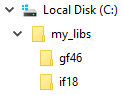
Any library or object files required should be created by using the corresponding compiler, and then added to the corresponding sub-folder.
When entering a relative path to the file, the user must specify a relative path, using macros, to both the User Libraries Folder, as well as the compiler sub-folder. For example, if a user specifies C:\my_libs as the User Libraries Folder and is using the Intel Visual Fortran 18 (64-bit) compiler, entering "$(LibDir)\$(Compiler)\test.obj" as shown below would point to C:\my_libs\if18\test.obj.

Files may also be referenced by an absolute path specification. If this method is chosen, then the folder specified in the User Libraries Folder will be overridden. For example, a file referenced with an absolute path may appear as follows:

Note that although this type of path is fine to be used temporarily, absolute paths are not recommended due to their static nature. That is, they are not relative to the context of the project, and so if a project file is transferred to another computer, the absolute path may no longer be valid.