Using only Dynamic Libraries: Explicit Linking
Using Dynamic Libraries with Associated Import Libraries: Implicit Linking
Additional Examples and Resources
Athough PSCAD comes complete with a wide range of built-in component models, there may be times when you need to use your own custom components/models, written in Fortran or C/C++. To distribute these components without revealing the source code, you can create dynamic link libraries (*.dll) or static libraries (*.lib) that contain the compiled (and thereby hidden) code of your components and load it into PSCAD.
The purpose of this topic is to explain how to use external libraries in PSCAD, using explicit linking and implicit linking. Explicit linking is used when you only have the *.dll file, while implicit linking is used when you have both the import library file (*.lib) in addition to the *.dll. Implicit linking is easier to implement: It may not work with all the compilers if there is no corresponding import library for that compiler. On the other hand, explicit linking is likely to work with many compilers. One thing to keep in mind is that 32-bit *.dll files will work only with 32-bit compilers and 64-bit *.dll files with 64-bit compilers.
When you may want to use external libraries, but you only have the *.dll file, you can use explicit linking to load the *.dll file and call the functions inside it.
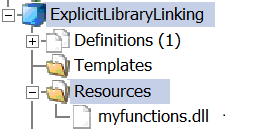
First, although there is no need to add *.dll files in the resources folder of your project, it is a good idea to add it as a resource. This will be helpful if the workspace containing the project needs to be consolidated for the purpose of sharing with others. After including the files, you will see them in the resources folder of the project as shown below. For more information, see the Resources Branch topic.
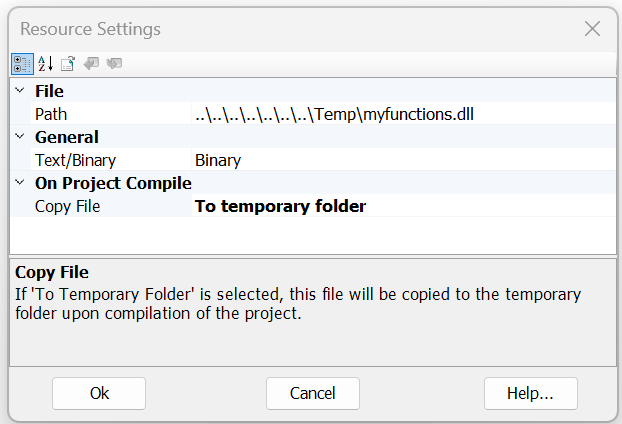
After that, right-click on the *.dll file, select Settings, you may want to choose the To temporary folder option from the Copy File dropdown menu as shown below. This action will copy the *.dll file to the project temporary folder when you run the simulation. This is only needed if you want to use a shorter path name to the *.dll file in the GET_DLL_HANDLE subroutine that will be explained later.
The next step to use the functions defined in the *.dll file is to create a custom Fortran module in which you will:
Load the required modules: ISO_C_BINDING and PSCAD_DLL_INTERFACE.
Create an interface to the functions inside the *.dll.
Create a handler of the *.dll.
Create function pointers.
Create procedure pointers to the interface functions.
Now, we will explain each step in detail.
Load the required modules. ISO_C_BINDING and PSCAD_DLL_INTERFACE can be loaded in Fortran by doing USE, INTRINSIC :: ISO_C_BINDING and USE PSCAD_DLL_INTERFACE. The ISO_C_BINDING module is used to define the variable types that will be used in the functions, while the PSCAD_DLL_INTERFACE module helps to load the DLL and the functions inside it. ISO_C_BINDING provides access to necessary variable types such as c_int, c_double, and c_bool among others.
Create an interface to the functions inside the *.dll. In Fortran, interfaces are defined within an interface block. For example, if we have a *.dll with two functions, function1 and function2, where function1 has no input or output arguments and function2 has two arguments (variable1 and variable2), the interface can be defined as follows:
module myExplicitDLL1
    ! Load the required modules
    implicit none
    ! Define the interface to functions
    interface
        subroutine function1Interface() bind(C, name="function1")
            use iso_c_binding
            implicit none
        end subroutine function1Interface
        subroutine function2Interface(variable1, variable2) bind(C, name="function2")
            use iso_c_binding
            implicit none
            real(c_double), intent(in) :: variable1
            real(c_double), intent(out) :: variable2
        end subroutine function2Interface
    end interface
    ! Create a handler for the DLL
    ! Create function pointers
    ! Create procedure pointers to the interface functions
end module myExplicitDLL1
Note: The name of the C/C++ functions is declared using the name attribute in the bind statement. The argument name is case-sensitive, so it is important to use the same name that is in the C/C++ code.
Create a handler of the DLL. The module PSCAD_DLL_INTERFACE contains a struct type DLL_HANDLE that is used to handle the *.dll. To create a handler, you can use the following code: type (DLL_HANDLE) :: handlerName.
Create function pointers. Function pointers are used to store the address of the functions inside the *.dll. To create a function pointer, you can use the following code: type(FUNCTION_POINTER) :: function1Ptr.
Create procedure pointers to the interface functions. Procedure pointers are used to call the functions inside the *.dll. To create a procedure pointer, you can use the following code: procedure(function1Interface) :: function1. Note that the name of the procedure pointer must match the name of the interface function.
The complete module will look like this:
module myExplicitDLL1
    ! Load the required modules
    use, intrinsic :: iso_c_binding
    use pscad_dll_interface
    implicit none
    ! Define the interface to functions
    interface
        subroutine function1Interface() bind(C, name="function1")
            use iso_c_binding
            implicit none
        end subroutine function1Interface
        subroutine function2Interface(variable1, variable2) bind(C, name="function2")
            use iso_c_binding
            implicit none
            real(c_double), intent(in) :: variable1
            real(c_double), intent(out) :: variable2
        end subroutine function2Interface
    end interface
    ! Create a handler for the DLL
    type (DLL_HANDLE) :: handlerName
    ! Create function pointers
    type(FUNCTION_POINTER) :: function1Ptr
    type(FUNCTION_POINTER) :: function2Ptr
    ! Create procedure pointers to the interface functions
    procedure(function1Interface) :: function1
    procedure(function2Interface) :: function2
end module myExplicitDLL1
After creating the module, you still need to load the *.dll and assign the function pointers to the functions inside the *.dll. This can be done using the subroutines GET_DLL_HANDLE, GET_DLL_FUNCTION_ADDRESS, and ASSOCIATE_FUNCTION_POINTER from the PSCAD_DLL_INTERFACE module.
GET_DLL_HANDLE is used to load the *.dll and get a handler to it. GET_DLL_FUNCTION_ADDRESS is used to get the address of the functions inside the *.dll. ASSOCIATE_FUNCTION_POINTER is used to associate the function pointers with the functions inside the *.dll.
GET_DLL_HANDLE has two arguments: the handler (e.g. handlerName) and the *.dll path + name. This allows to load a *.dll in any directory. GET_DLL_FUNCTION_ADDRESS has three arguments: the handler, the function pointer, and the name of the function in C/C++. ASSOCIATE_FUNCTION_POINTER has two arguments: the function pointer and the procedure pointer.
Normally, the *.dll will be loaded at the beginning of the program. Therefore, it is recommended to create a subroutine to load the *.dll at the beginning of the program. The following code shows an example of how to load the *.dll and assign the function pointers using a subroutine:
subroutine initialize_DLL()
    use myExplicitDLL1

    ! Load the DLL from a different directory
    ! call GET_DLL_HANDLE(handlerName, "pathToMyDLL\myfunctions.dll")
    ! or Load the DLL considering that it is copied to the same directory as the executable
    ! call GET_DLL_HANDLE(handlerName, ".\myfunctions.dll")
    call GET_DLL_HANDLE(handlerName, "..\Resources\myfunctions.dll")
    ! Get the address of the functions
    call GET_DLL_FUNCTION_ADDRESS(handlerName, function1Ptr, "function1")
    call GET_DLL_FUNCTION_ADDRESS(handlerName, function2Ptr, "function2")
    ! Associate the function pointers with the functions
    call ASSOCIATE_FUNCTION_POINTER(function1Ptr, function1)
    call ASSOCIATE_FUNCTION_POINTER(function2Ptr, function2)
end subroutine initialize_DLL
After loading the *.dll and assigning the function pointers, you can call the functions inside the *.dll using the procedure pointers in a custom component. The following code shows an example of how to call the functions, considering that variable1 and variable2 are real variables defined in the custom component:
! initialize the DLL if it is the first timestep
if (FIRSTSTEP) then
    call initialize_DLL()
end if
! Call the functions
call function1()
call function2($variable1, $variable2)
Suppose that you created a *.dll file named myfunctions.dll from the following C++ file:
// myfunctions.cpp
#include <iostream>
#include <cstdbool>
extern "C" {
    __declspec(dllexport) int addFromDll(int a, int b) {
        return  a + b;
    }
    __declspec(dllexport) double multiplyFromDLL(double a, double b) {
        return  a * b;
    }
    __declspec(dllexport) double hello() {
        std::cout << "Hello from DLL" << std::endl;
        return 3.1416;
    }
    // Receive a logical element and prints it
    __declspec(dllexport) int printLogical(bool value) {
        if (value) {
            std::cout << "T" << std::endl;
        } else {
            std::cout << "F" << std::endl;
        }
        return 1;
    }
    // Receive an array of logical elements and print them
    __declspec(dllexport) int printLogicalArray(bool* array, int size) {
        for (int i = 0; i < size; i++) {
            if (array[i]) {
                std::cout << "T ";
            } else {
                std::cout << "F ";
            }
        }
        std::cout << std::endl;
        return 1;
    }
}
Note: For more information on how to create a *.dll from a C++ file, you could see the Mirosoft Walkthrough: Create and use your own Dynamic Link Library (C++) topic.
Now, we will create a Fortran file named explicitModule.f90 that will define the interface to the functions inside the *.dll and the helper subroutines to load and use the required functions. The file will look like this:
module myExplicitDLL1
    use, intrinsic :: ISO_C_BINDING
    use pscad_dll_interface
    implicit none
    ! Define the interface for the functions in the DLL
    interface
        function addFromDllInterface(a, b) bind(C, name="addFromDll")
            import :: C_INT
            integer(C_INT) :: addFromDllInterface
            integer(C_INT), value :: a, b
        end function addFromDllInterface
        function multiplyFromDLLInterface(a, b) bind(C, name="multiplyFromDLL")
            import :: C_DOUBLE
            real(C_DOUBLE) :: multiplyFromDLLInterface
            real(C_DOUBLE), value :: a, b
        end function multiplyFromDLLInterface
        function printLogicalValueInterface(val) bind(C, name="printLogical")
            import :: C_BOOL, C_INT
            integer(C_INT) :: printLogicalValueInterface
            logical(C_BOOL), intent(in), value :: val
        end function printLogicalValueInterface
        function printLogicalArrayInterface(arr, n) bind(C, name="printLogicalArray")
            import :: C_BOOL, C_INT
            integer(C_INT) :: printLogicalArrayInterface
            logical(C_BOOL), intent(in) :: arr(n)
            integer(C_INT), value :: n
        end function printLogicalArrayInterface
    end interface
    ! Create the DLL handler
    type (DLL_HANDLE) :: MyHandle
    ! Create function pointers
    type (FUNCTION_POINTER) :: addFromDllPtr, multiplyFromDLLPtr, printLogicalValuePtr, printLogicalArrayPtr
    ! Create procedure pointers to the interface functions
    procedure(addFromDllInterface), pointer :: addFromDll
    procedure(multiplyFromDLLInterface), pointer :: multiplyFromDLL
    procedure(printLogicalValueInterface), pointer :: printLogicalValue
    procedure(printLogicalArrayInterface), pointer :: printLogicalArray
end module myExplicitDLL1
subroutine initializeExplicitDLL()
    use myExplicitDLL1
    implicit none
    ! Load the DLL considering that it is copied to the same directory as the executable
    call GET_DLL_HANDLE(MyHandle, ".\myfunctions.dll")
    ! Load the DLL from a different directory
    ! call GET_DLL_HANDLE(MyHandle, "..\myfunctions.dll")

    ! Get the address of the functions
    call GET_DLL_FUNCTION_ADDRESS(MyHandle, addFromDllPtr, "addFromDll")
    call GET_DLL_FUNCTION_ADDRESS(MyHandle, multiplyFromDLLPtr, "multiplyFromDLL")
    call GET_DLL_FUNCTION_ADDRESS(MyHandle, printLogicalValuePtr, "printLogical")
    call GET_DLL_FUNCTION_ADDRESS(MyHandle, printLogicalArrayPtr, "printLogicalArray")
    ! Associate the function pointers with the functions
    call ASSOCIATE_FUNCTION_POINTER(addFromDllPtr, addFromDll)
    call ASSOCIATE_FUNCTION_POINTER(multiplyFromDLLPtr, multiplyFromDLL)
    call ASSOCIATE_FUNCTION_POINTER(printLogicalValuePtr, printLogicalValue)
    call ASSOCIATE_FUNCTION_POINTER(printLogicalArrayPtr, printLogicalArray)
end subroutine initializeExplicitDLL
subroutine testExplicitDLL()
    use myExplicitDLL1
    implicit none

    integer(c_int) :: a, b
    real(c_double) :: c, d
    logical(c_bool) :: e
    integer, parameter :: n = 5
    logical(c_bool) :: arr(n)
    a = 5
    b = 10
    c = 5.0
    d = 10.0
    e = .true.
    arr = [.true., .false., .true., .false., .true.]
    print *, "Starting testExplicitDLL"
    print *, "addFromDll(5, 10) = ", addFromDll(a, b)
    print *, "multiplyFromDLL(5.0, 10.0) = ", multiplyFromDLL(c, d)
    print *, "printLogical(.true.) = ", printLogicalValue(e)
    print *, "printLogicalArray([.true., .false., .true., .false., .true.], 5) = ", printLogicalArray(arr, n)
end subroutine testExplicitDLL
Afterwards, we will create a custom component in PSCAD with a Fortran Segment in which we will load the *.dll at the first time step, and then call the testExplicitDLL subroutine in the next time step. The code will look like this:
    if (timezero) then
        call initializeExplicitDLL()
    end if
    if ( abs(time - delt) .le. 1e-12 ) then
        call testExplicitDLL()
    end if
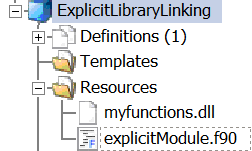
Finally, include the files myfunctions.dll and explicitModule.f90 in the resources folder of the project. Ensure that the *.dll settings are configured to copy the *.dll to the current folder since it is loaded from the current working directory in the example.
Using a combination of dynamic libraries with associted import libraries in PSCAD is simpler than using only dynamic libraries. However, *.lib files are not always distributed along the *.dll. The main difference in this approach is that you do not need to load the *.dll using the PSCAD_DLL_INTERFACE module. Instead, you can directly define the interface to the functions and use them in your custom component.
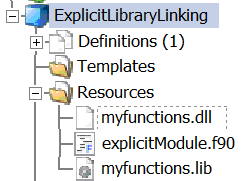
Additionally, you need both the import library file (*.lib) and the dynamic library file (*.dll) to be in the resources folder of your project as shown below. Also, remember to set the *.dll settings to be copied to the current folder as shown below:
The following code shows an example of how to define the interface to the functions inside a dynamic library:
module myImplicitDLL1
    ! Load the required module
    use, intrinsic :: iso_c_binding
    implicit none
    ! Define the interface to functions
    interface
        subroutine function1Interface() bind(C, name="function1")
            use iso_c_binding
            implicit none
        end subroutine function1Interface
        subroutine function2Interface(variable1, variable2) bind(C, name="function2")
            use iso_c_binding
            implicit none
            real(c_double), intent(in) :: variable1
            real(c_double), intent(out) :: variable2
        end subroutine function2Interface
    end interface
end module myImplicitDLL1
After having the module, you can create subroutines to call the functions inside the dynamic library. The following code shows an example of how to call the functions:
subroutine function1()
    use myImplicitDLL1
    call function1Interface()
end subroutine function1
subroutine function2(variable1, variable2)
    use myImplicitDLL1
    real(c_double), intent(in) :: variable1
    real(c_double), intent(out) :: variable2
    call function2Interface(variable1, variable2)
end subroutine function2
As in the previous example, you can call the functions inside the dynamic library using the subroutines in a custom component.
When you only have the *.dll file but want to use implicit linking in PSCAD, you can generate an import library from the *.dll file.
To generate an import library from a *.dll, first create a Module Definition *.def file that contains the names of the functions exported from the *.dll. This can be done using the Visual Studio tool dumpbin as follows:
dumpbin /exports dllName.dll > dllName.def
This file need to be edited to satisfy the syntax rules for *.def files. After creating the *.def file, use the lib tool that comes with Visual Studio to generate the import library:
lib /def:dllName.def /out:dllName.lib /machine:machineArchitecture
Replace machineArchitecture with the appropriate architecture (e.g., x86, x64). For example, to create an import library for a 64-bit compiler, use:
lib /def:dllName.def /out:dllName.lib /machine:x64
This will create an import library file named dllName.lib and a .exp file containing the exported functions from the *.dll. Include the *.lib file in the resources folder of your project and use implicit linking as explained in the previous section.
Note: Ensure you have Visual Studio installed and either use the Intel OneAPI command prompt or set the environment variables to the paths where the Visual Studio tools are located.
As in the previous example, suppose that you created a *.dll file named myfunctions.dll and an import library file named myfunctions.lib from the same C++ file.
Now, we will create a fortran file named implicitModule.f90 that will define the interface to the functions inside the *.dll and the helper subroutines to load and use the required functions. The file will look like this:
modulemyImplicitDLL1use, intrinsic :: iso_c_bindingimplicit noneinterface function addFromDll(a, b)bind(C,name="addFromDll") import :: C_INT integer(C_INT) :: addFromDll integer(C_INT), value :: a, b end function addFromDll function multiplyFromDLL(a, b)bind(C,name="multiplyFromDLL") import :: C_DOUBLEreal(C_DOUBLE) :: multiplyFromDLLreal(C_DOUBLE), value :: a, b end function multiplyFromDLL function printLogicalValue(val)bind(C,name="printLogical") import :: C_BOOL, C_INT integer(C_INT) :: printLogicalValue logical(C_BOOL),intent(in), value :: val end function printLogicalValue function printLogicalArray(arr, n)bind(C,name="printLogicalArray") import :: C_BOOL, C_INT integer(C_INT) :: printLogicalArray logical(C_BOOL),intent(in) :: arr(n) integer(C_INT), value :: n end function printLogicalArray end interfaceend modulemyImplicitDLL1subroutinetestImplicitDLL()usemyImplicitDLL1implicit noneinteger(c_int) :: a, breal(c_double) :: c, d logical(c_bool) :: e integer, parameter :: n = 5 logical(c_bool) :: arr(n) a = 5 b = 10 c = 5.0 d = 10.0 e = .true. arr = [.true., .false., .true., .false., .true.]*, "Starting testImplicitDLL"*, "addFromDll(5, 10) = ", addFromDll(a, b)*, "multiplyFromDLL(5.0, 10.0) = ", multiplyFromDLL(c, d)*, "printLogical(.true.) = ", printLogicalValue(e)*, "printLogicalArray([.true., .false., .true., .false., .true.], 5) = ", printLogicalArray(arr, n)end subroutinetestImplicitDLL
Note that in this case, we do not need to load the *.dll using the PSCAD_DLL_INTERFACE module, retrieve the function addresses, or associate the functions. Instead, we can directly define the interface to the functions and use them in the testImplicitDLL subroutine. This method is simpler than using dynamic libraries with explicit linking, but it requires including both the import library file and the dynamic library file in the resources folder of the project.
In the PSCAD Examples\DLL_Interface folder, you can find additional examples demonstrating the use of external libraries in PSCAD through both explicit and implicit linking. These examples are named LoadLibrary and ImportLibrary. They include calls to various functions and subroutines and provide automatic handling of 32-bit or 64-bit libraries by adjusting the library settings path and the script accordingly.
In the Resource Branch topic you can find more information on how to include your libraries from different directories and the use of different macros to set the path of the libraries.