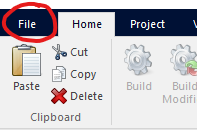


Left-Click the File Tab
Click Open
The Open Icon
Additional Source and Linked Binary Files
Migration to the Latest Master Library Components
For the most part, loading PSCAD X4 (v4.3 to v4.6) into V5 is simple, straightforward and you should encounter a minimum of issues. We have taken care to provide enough smarts in the project file loader to ensure that any changes that need to be made, are done so automatically behind the scenes, with minimal user input.
To load a PSCAD X4 (v4.3 to v4.6) project, simply click the File tab in the ribbon control bar, click the Open menu item, and then select the Open icon.
|
|
|
Left-Click the File Tab |
Click Open |
The Open Icon |
This action will bring up the Open File dialog. Select the case (*.pscx), library (*.pslx) or workspace (*.pswx) file that you would like to load. See Loading a Project for more details.
In fact, PSCAD V5 supports the import of projects last saved in v4.1 and onward. However, the chances of issues arising during import increase the further you go back. If you are planning to import projects last saved in v4.1 or v4.2, it is recommended you review the topic Importing PSCAD V4 Projects to X4 before continuing. See Importing a Project for direct instructions.
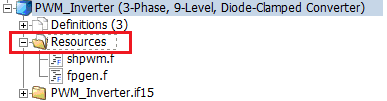
The manner in which additional source and linked binary files is handled in PSCAD V5, is completely new and improved. Dependent file information is no longer entered within two separate project settings fields, but at a single entry point called the Resources Branch.
|
|
PSCAD X4 Project Settings |
PSCAD V5 Resources Branch |
An inherent part of each project file, the resources branch houses all additional source and linked binary files, on which the project is dependent (see Resources Branch for a complete description). Upon load of your X4 project, V5 will automatically construct and set a resources branch for you, based on any files associated with X4 project. This should be a seamless process, and you may immediately build and run the project without any manual changes.
Global substitution functionality is completely redesigned in V5. No longer a set of parameters attached to the main schematic canvas of a project, the new design has them inherent in the project file itself; that is, they are now global in the true sense. On load of your X4 project, PSCAD V5 will ensure that any associated globals are reorganized automatically into the new global substitution environment. Your new V5 project should function normally without any changes.
See Global Substitutions for more details on where to find, and how to use the new global substitutions in V5.
Change is inevitable; and our collection of Master Library models is no exception. Our component models are continuously being updated for usability and accuracy, based on user input and feedback. As such, there are instances where we need to update the model to work better, but at the same time, take care to ensure that simulation results do not change once a project has been loaded into the newer version.
Keep this in mind as you try out your older projects in PSCAD V5. If you do happen to see differences in results, feel free to contact our Support Desk at support@mhi.ca.
Unit conversion was first introduced in PSCAD V3. At the time of its implementation, compatibility with legacy projects was an issue, so a project setting was introduced to allow unit conversion to be disabled. This option has been removed in PSCAD V5, and henceforth unit conversion is always enabled (starting with v5.0.0).
When importing X4 case projects that have the unit converter disabled, you will need to verify component input parameter units prior to running, as simulation results may differ. A build warning is issued on import of the project if unit conversion is detected as disabled.