Activating a License Certificate
License Activation Behaviour when Using Multiple PSCAD Instances
Returning a License Certificate
License Exiting Behaviour when Using Multiple PSCAD Instances
Retaining a License Certificate upon Exit
Viewing Active License Information
Reviewing Licensing Information
Certificate licensing is the preferred type of license for using PSCAD. Licensing is hosted by Manitoba Hydro International, Ltd. (MHI), and shared with client machines over the internet. Licensing is activated on the client machine in the form of a license certificate, and managed through a user web portal called MyCentre.
A license certificate is temporary and renewable authorisation for running PSCAD. When PSCAD is launched, MyCentre login credentials are entered by the user. If a license is available, and if the user is authorised, the license certificate is acquired and saved to the client machine.
One license certificate will allow the user to run multiple instances of PSCAD on their workstation. This is one of the advantages of certificate licensing over lock-based licensing, in which the number of instances is limited to the number of seats purchased.
When PSCAD is closed, the license certificate may be released back to the server and becomes available to be checked out by another user. Or, the license certificate may be retained on the client machine, and an initial default checkout period of four weeks will be applied. This checkout period allows a user to launch and use PSCAD if no internet connection is available, making it portable. Or, if PSCAD is launched with an internet connection, the checkout period will be refreshed to a new four-week period.
Certificate licensing is supported by the following editions and versions:
The Professional Edition, v4.5.1 and newer
The Educational Edition, v4.5.4 and newer
The Beta Edition
The Free Edition
Once your certificate licensing and downloads have been authorised and you have obtained access to the certificate licensing through MyCentre and installed the software, then you may activate the license as follows:
Note: Refer to License Activation Behaviour when Using Multiple PSCAD Instances for an additional and important configuration.
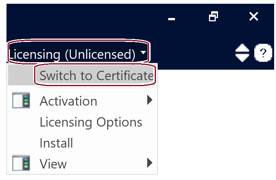
If “Switch to Certificate" is displayed as shown below, click on this button to configure PSCAD to use certificate licensing:
Note: If “Switch to Lock-Based” is displayed under the Licensing tab, do not click on it; PSCAD is already configured for certificate licensing.
Log in using your MyCentre login credentials:

Select the edition to activate:

The license certificate will be checked out, and PSCAD may be used.
A new setting, When manually acquiring a certificate, was introduced with PSCAD v5.1.0. This setting is applicable when running multiple instances of PSCAD on one machine, and if manually activating licensing as per the section Activating a License Certificate.
When the new setting is set to First check if one has already been acquired as shown below, and when multiple instances of PSCAD are launched on a single machine, only one license will be consumed. Once the license is initially acquired, any subsequent PSCAD instances will also use that license, rather than consuming additional licenses, which can result in lost or unreturnable licenses. This is the preferred behaviour.
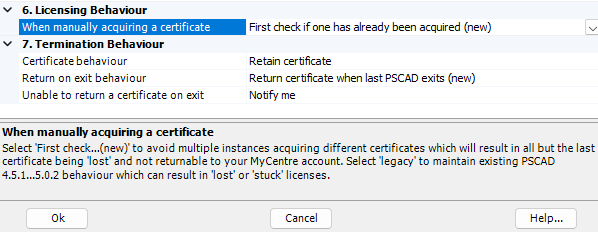
If instead the new setting is set to Just acquire it as shown below, then when multiple instances of PSCAD are launched on a machine, each instance could potentially consume its own license, which can result in lost or unreturnable licenses. This is not the preferred behaviour.

The license certificate may be returned in three ways:

Note: Refer to License Exiting Behaviour when Using Multiple PSCAD Instances for an additional and important configuration.


A new setting, Return on exit behaviour, was introduced with PSCAD v5.1.0. This setting is applicable when multiple instances of PSCAD are using the same license on one machine (see License Activation Behaviour when Using Multiple PSCAD Instances), and when PSCAD is configured to automatically return a license upon exit (see Returning a License Certificate).
When the new setting is set to Return certificate when last PSCAD exits is selected as shown below, then the certificate will not be returned until the very last instance of PSCAD is closed. Therefore, licensing will remain active on that machine for all remaining PSCAD instances that are still open. This is the preferred behaviour.
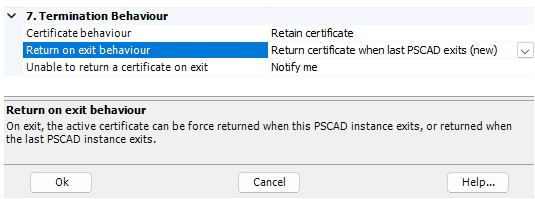
If instead the new setting is set to Return certificate and exit as shown below, the license will be returned when the first of the multiple instances of PSCAD is closed. The remaining instances of PSCAD will therefore become unlicensed.

The license certificate may be retained upon exit in two ways:
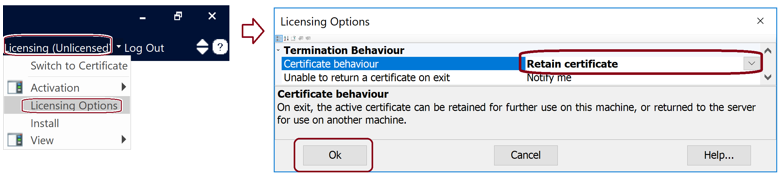
Configure PSCAD to automatically retain the license certificate upon exit:
Manually select the behaviour when exiting:
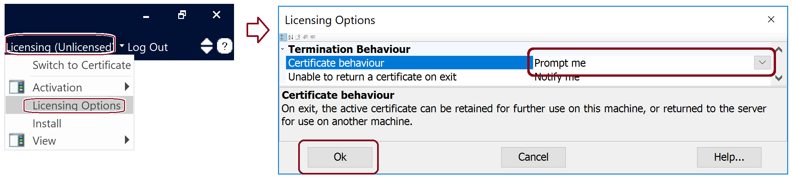
Configure PSCAD to prompt the user to select the behaviour upon exit:

Select View | Current Certificate from the Licensing menu for details on your current certificate license.
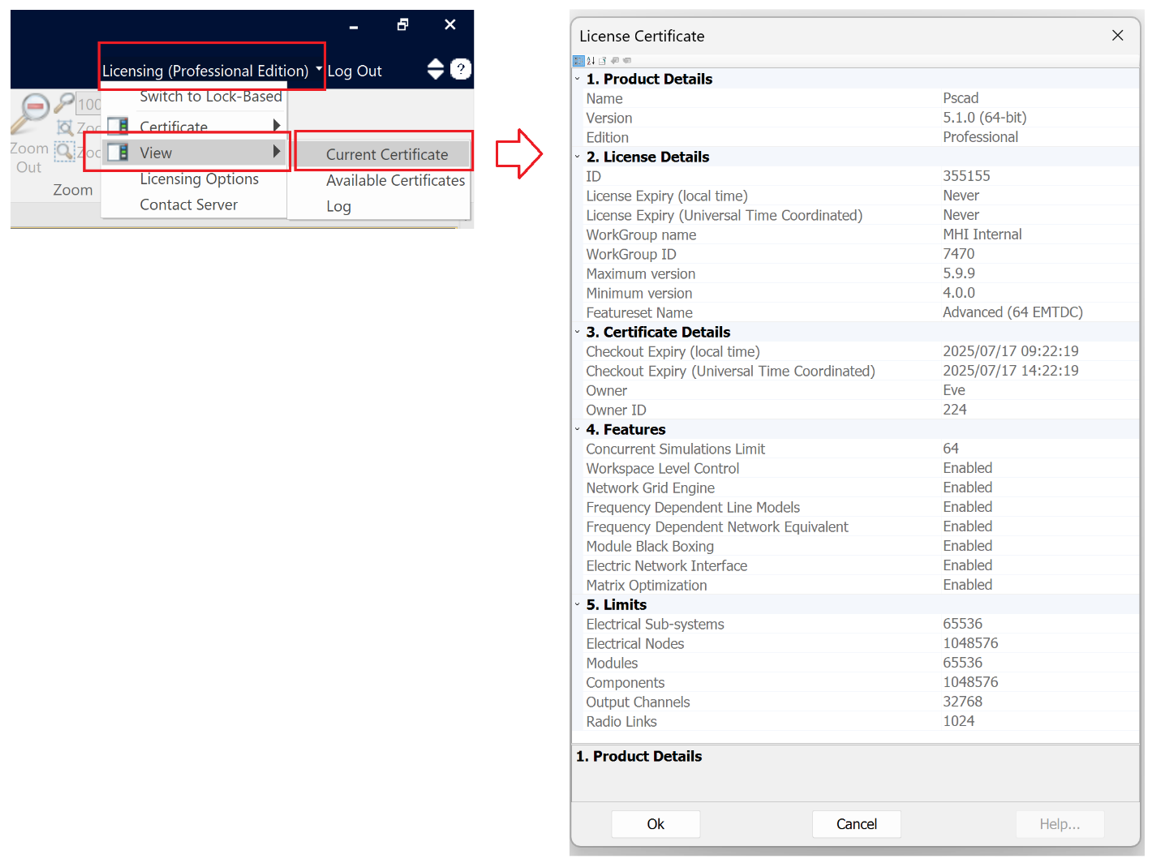
Clicking in a field will display a corresponding description in the bottom section.
Licensing information and activity are logged to help with licensing setup and diagnostics.
On a client machine, all certificate licensing activity occurring on that machine is logged to the PscadCert.txt log file. The logged errors may be used to determine the cause of a licensing issue, or the log file may be forwarded to PSCAD Support Services for evaluation.
The PscadLmgr.txt file may be displayed from the following location:
C:\ProgramData\Manitoba HVDC Research Centre\LicenseManager