There are many keyboard shortcuts (or hotkeys) available. Hotkeys help to reduce the 'amount of clicks' required for performing a specific task. The following tables list the available keyboard shortcuts.
Note that the 'Ctrl' key may be dropped where indicated (i.e. [Ctrl +]) if Enable Cut/Copy/Paste without 'Ctrl' Key in the Environment category of the Application Options is selected.
|
Shortcut |
Description
|
|
[Ctrl +] x |
Cut selection |
|
[Ctrl +] c |
Copy selection |
|
[Ctrl +] v |
Paste selection |
|
r |
Rotate selection right |
|
l |
Rotate selection left |
|
m |
Mirror selection |
|
f |
Flip selection |
|
s |
Set component sequence. Note that the component must be selected first before pressing this key. |
|
Ctrl + a |
Select all |
|
Ctrl + z |
|
|
Ctrl + y |
Redo |
|
Ctrl + o |
Load project |
|
Ctrl + n |
New project |
|
Ctrl + s |
Save active project |
|
Ctrl + g |
Global Substitutions dialog |
|
Ctrl + u |
Unload the selected project from the workspace |
|
Ctrl + w |
Invoke/cancel wire mode |
|
Esc |
Cancel action |
|
+ |
Zoom in |
|
- |
Zoom out |
|
Ctrl + Shift + Left Mouse Hold |
Pan (dynamic scroll) |
|
Ctrl + Left Double Click |
Edit definition of selected component or module |
|
Ctrl + Right Click |
Invoke the library pop-up menu system |
|
Left Double Click |
Edit properties of selected component or module |
|
Backspace |
Navigate backwards |
|
Ctrl + Backspace |
Navigate up to parent canvas |
|
F5 |
Refresh canvas |
|
F1 |
Invoke the help system |
|
! " # $ |
Scroll canvas horizontally and vertically |
To apply any of the following shortcuts, simply move your mouse pointer over a wire.
|
Shortcut |
Description
|
|
v |
Insert a wire vertex |
|
i |
Reverse wire vertexes |
|
d |
Decompose wire |
To apply any of the following shortcuts, simply move your mouse pointer over a plot area. Note that in some instances, the graph must be selected.
|
Shortcut |
Description
|
|
Insert |
Insert an overlay graph |
|
+ |
Zoom in to graphs |
|
- |
Zoom out of graphs |
|
p |
Zoom previous |
|
n |
Zoom next |
|
x |
Zoom x-axis extents |
|
e |
Zoom x-axis limits |
|
y |
Zoom y-axis extents |
|
u |
Zoom y-axis limits |
|
r |
Reset all extents |
|
b |
Reset all limits |
|
Ctrl + Left Mouse Hold |
Zoom horizontal aperture |
|
Shift + Left Mouse Hold |
Zoom vertical aperture |
|
Left Mouse Hold |
Zoom to box (simultaneous horizontal and vertical) |
|
g |
Toggle grid lines |
|
i |
Toggle tick marks |
|
k |
Toggle curve Glyphs |
|
m |
Show or hide markers |
|
x |
Set X marker |
|
o |
Set O marker |
|
l |
Toggle marker lock-step |
|
f |
Toggle frequency/delta view |
|
q |
Show x-intercept |
|
w |
Show y-intercept |
|
c |
Show cross-hairs (follows curve traces) |
|
Space Bar |
Switch curves while in cross-hair mode |
|
! " |
Graph frame dynamic aperture adjustment |
To apply any of the following shortcuts, you must be working within the Layers Pane.
|
Shortcut |
Description
|
|
Insert |
Add layer |
|
Delete |
Remove layer |
|
Ctrl + l |
List components |
|
Ctrl + k |
Select components |
|
Ctrl + m |
Merge layers |
|
Ctrl + r |
Rename layer |
|
Hold h |
Highlight components |
|
# $ |
Move the selection within the layers table |
|
Shift + # Shift + $ |
Extend the selection within the layers table |
|
Home and End |
Move the selection to the first and last Layers respectively |
|
PageUp and PageDown |
Move the selection by the size of the window |
|
e, d and i |
Change the state to Enabled, Disabled and Invisible respectively |
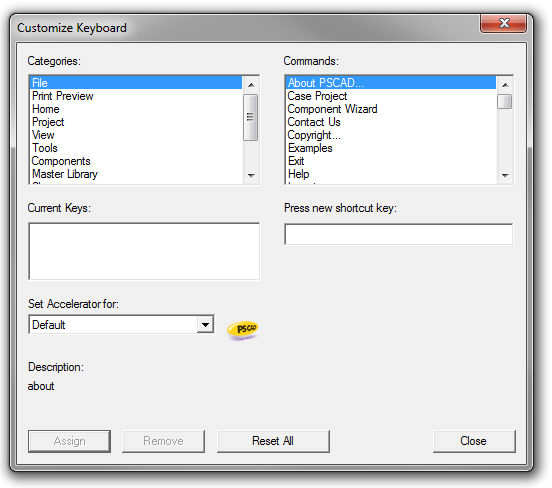
To customize shortcuts, right-click on the ribbon control bar and select Customize Quick Access Toolbar.... This will bring up the Customize dialog. Click the Customize... button to bring up the Customize Keyboard dialog.