Once a project has been opened, there are many navigational features available to help you efficiently navigate about the project.
Standard vertical and horizontal scroll bars are available in all windows. These are located at the right-most and bottom-most edges of the open window respectively.
You can use the arrow buttons on your keyboard to scroll both horizontally and vertically while in Schematic view.
Both the schematic and the graphic canvases may be scrolled using the mouse wheel. To vertically scroll, simply roll the mouse wheel. To scroll horizontally, hold down the Shift key and roll the mouse wheel.
The panning feature allows you to scroll through the Schematic or Graphic tab windows in a fluid motion. You can invoke the panning mode by one of the following methods:
On a blank portion of the page, press and hold the Ctrl and Shift keys at the same time, then click and hold the left mouse button (Ctrl + Shift + left mouse hold). Moving the mouse will then allow panning though the page.
Press the Pan button in the Home tab of the ribbon control bar to invoke panning mode. To indicate that you are in panning mode, the mouse pointer will change into a hand shape. Press Esc on the keyboard or press the Pan button again to exit from panning mode.
Opening the Schematic canvas of a module component (i.e. moving into) is analogous to editing the definition of the module. Therefore, right-click on the module and select Edit Definition....
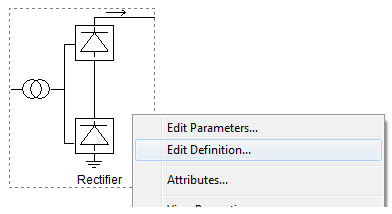
You may also perform the same operation by double-clicking the left mouse button. However, this functionality is dependent on a setting called Drill Down (under the Environment category of the Application Options dialog) as follows:
Double-Click: If you want to use the old method of navigating through module components, set the Drill Down setting to Double Click. Note however that if the module possesses input parameters, the parameter dialog will not open with this action.
Ctrl + Double-Click: If the Drill Down setting is set to Ctrl + Double Click, you may still navigate into the module by holding down the Ctrl key and left double-clicking the module component. A double-click without the Ctrl button in this mode opens the parameters dialog.
To move out of the current module (i.e. move back one level), press the Up to parent canvas button in the Home tab of the ribbon control bar.
|
Up Button |
Instead of the Up button, you can also use the workspace secondary window to specifically select a module to navigate to. See The Secondary Window for more.
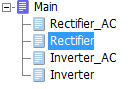
PSCAD maintains a navigational history of the user’s module canvas navigation for each session. When a project is unloaded, or when a session is ended, all navigation history is lost.
Navigation history is presented in the form of Forward and Back buttons in the Home tab of the ribbon control bar.


Tabs allow you to jump from one viewing area to another. There is a tab bar included at the bottom of some windows (as shown below), including the Output Window and others.

