Changing Boolean Field Properties
Boolean fields are designed for simple on/off or yes/no parameters.
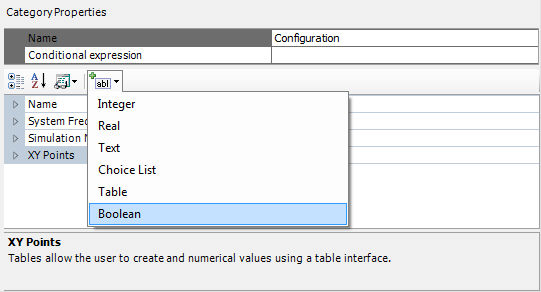
To add a new boolean field to a category page, select the category in the Categories tree and then select Boolean within the Add Parameter Field drop list button:
A new boolean field will appear:

Boolean field properties can be adjusted directly on the category page. Left-click on the [+] box to expand the boolean field tree node.
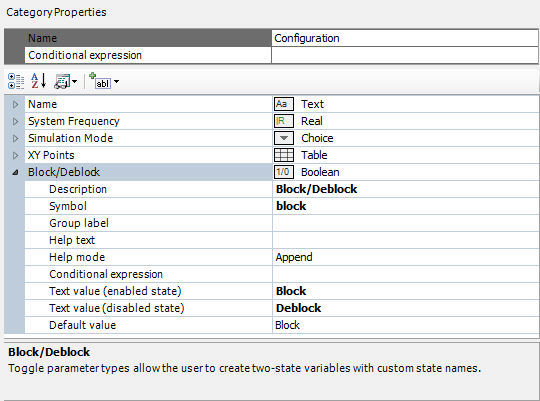
The properties available are described as follows:
Description: Enter a caption to act as the visible title of the toggle field.
Symbol: Enter a symbolic name for the toggle field, which will be used as a variable name when addressing this field within code. Note that this name must be compatible with standard Fortran naming conventions (i.e. it must begin with a non-numeric character, do not include spaces, etc.).
Group Label: Use this field to organize the display of the input parameters in the actual component parameter dialog. All parameter fields that possess the same group name will be grouped together under the group name heading.
Help Text: Enter a brief statement describing the field. This text will be displayed on the actual input parameter dialog for the component.
Help Mode: Select Append or Overwrite. If Overwrite is selected, only the help text will appear at the bottom of the dialog when the user selects this parameter. If Append is selected, then the prompt text will be appended to the other parameter attribute information displayed.
Conditional Expression: Enter a conditional statement to indicate under what input conditions the toggle field is to be enabled. See Conditional Statements, Layers & Filters for more details.
Text Value (Enabled State): Enter a name for the enabled (true) state.
Text Value (Disabled State): Enter a name for the disabled (false) state.
Default Value: Use this field to select which of the two toggle states is to be the default.