When a dataset is loaded from a source file, it will be listed under the Data branch. It is possible to load multiple datasets, and these will be listed in the order in which they are loaded.
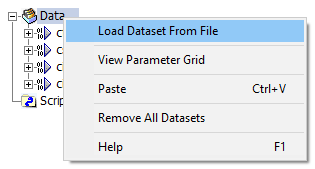
Right-clicking directly on the Data branch will bring up a menu as shown below:
The following list describes the functions of this pop-up menu:
Load Dataset From File: Opens the Open Data File dialog. Select a supported data file type to load as a dataset. See Loading a Dataset for more details.
View Parameter Grid: Opens the Parameter Grid pane in dataset-mode.
Paste: Paste a dataset from the Windows clipboard.
Remove All Datasets: Removes all datasets from the Data branch. See Removing Datasets.
Help: Opens the corresponding topic in the online help.
A dataset represents a source data file that has been loaded into the Enerplot environment. Once loaded, the records contained within it can be used to create curves for display in the available plotting tools. Datasets can only be created from supported data file types.
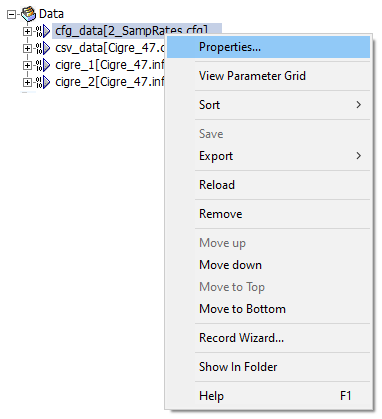
Right-clicking directly on a Dataset will bring up a menu as shown below:
The following list describes the functions of this pop-up menu:
Properties...: Invokes the Dataset Properties dialog. See Editing Dataset Properties.
View Parameter Grid: Opens the Parameter Grid pane in dataset-mode.
Sort: Select an option to sort the records in the dataset.
By Name: Sorts alphabetically.
By Original File Order: Sorts by the order in which the records appear in the original source file.
Save: Save may only be used on datasets that have been created by Enerplot: Specifically, a Comma Separated Value (*.csv) formatted file, created when Generating a New Record or a *.csv formatted file when pasting data from the clipboard.

Export: Export the dataset source file to a new file (Enerplot supports writing *.csv and COMTRADE formats). See Saving Datasets for details.
All Records: Includes all records in the new file.
Plotted Records Only: Includes only the records that are currently being plotted in a new file.
Reload: Reloads the dataset data from the source file. Similar to a refresh action.
Remove: Removes the dataset from the Data branch. See Removing Datasets.
Move: Moves the dataset in the local stack of datasets as indicated.
Record Wizard...: Invokes the Record Wizard.
Show in Folder: Selecting this item will open the Windows file explorer to the folder location where that particular file is located. See Show in Folder.
Help: Opens the corresponding topic in the online help.
Records are objects, contained within a dataset, that represent a single series of data, as defined by the source data file. Records can be used to create curves for display in the available plotting tools.
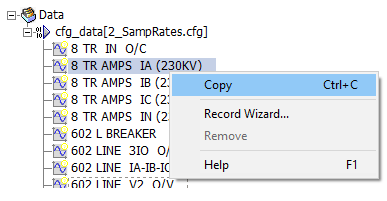
Right-clicking directly on a Dataset will bring up a menu as shown below:
The following list describes the functions of this pop-up menu:
Copy: Copies the record to the Windows clipboard for pasting based on context. See Smart Paste for more details.
Record Wizard...: Invokes the Record Wizard.
Remove: Removes only records that have been added by the Record Wizard, or created via Generating a New Record (original source data is never modified).
Help: Opens the corresponding topic in the online help.