Displaying the Library Viewer Pane
Searching, Filtering and Other Display Adjustments
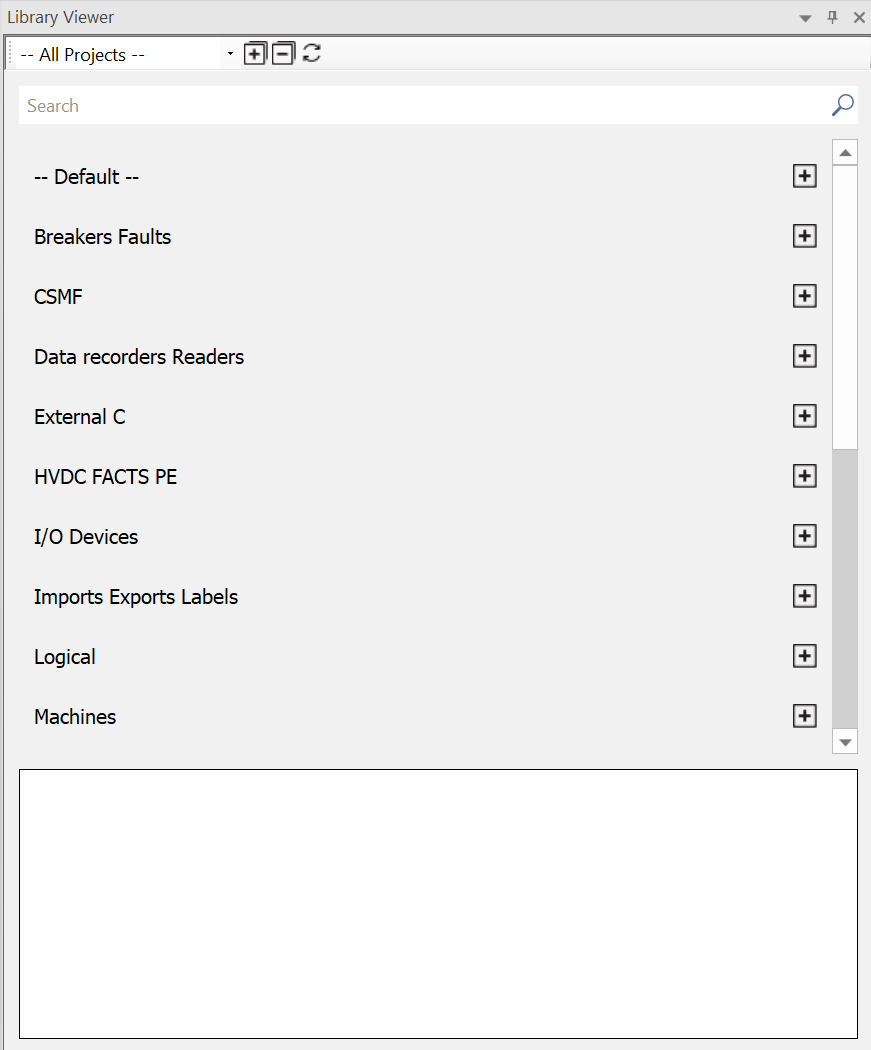
The Library Viewer Pane provides an alternative and more intuitive way to access both master library and custom library component models. Filters provide the ability to focus the view on a specific project, or across all loaded projects in the workspace. Fully searchable, users can quickly find what they are looking for and add an instance of the component to the schematic with a single click. A display window at the bottom of the pane provides information about the component, including its graphical appearance.
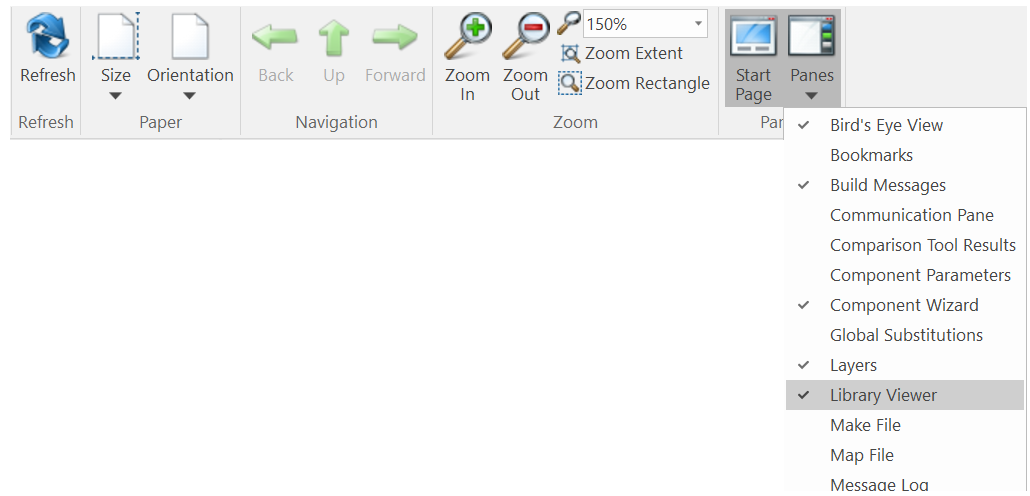
The Library Viewer Pane is not displayed by default, but may be invoked via the View tab in the ribbon control bar by selecting it from the Panes drop-down box.
There are several options to help narrow down the contents of this pane.
To search using the Library Viewer Pane, simply type a keyword into the search bar. Note that not only definition name is considered, but also other definition settings, such as tag and group. See Editing Definition Settings for more details.

Note that searching is dynamic and refines dynamically as you type in the string.
The scope of the Library Viewer Pane can be adjusted to filter out unnecessary areas, in order to narrow what is being shown. A drop list at the top of the viewer provides a list of all projects currently loaded in the workspace. The default is All Projects, but you may also select a specific project.

There are a few button at the top of the pane to help adjust display. The +/- buttons will expand or collapse the text displayed. There is also a refresh button.

The Library Viewer Pane relies on component definition settings to function. So to make full use of its facilities, ensure that your custom component definitions are properly labelled. See Editing Definition Settings for more details.