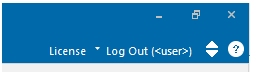
Logged In
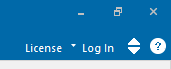
Logged Out
Acquiring or Releasing a License Certificate
Workgroups contain licenses, which specify the software edition and version, type of license, and licensing duration (permanent or time-limited). This sub-chapter describes how to navigate licensing in the Enerplot software.
Before acquiring or releasing a certificate, the user must be logged in to Enerplot. The following can help to determine whether you are currently logged in to Enerplot or not:
|
|
Logged In |
Logged Out |
To log in to Enerplot, select Log In, and enter your MyCentre login credentials when prompted. To log out, select Log Out, then confirm this action when prompted.
The following can help to determine whether your product is currently licensed or not:
|
|
Licensed |
Unlicensed |
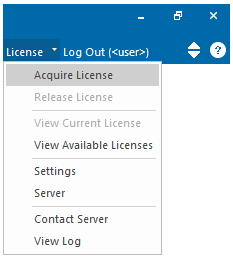
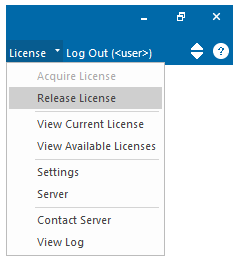
From the License drop-down menu, select Acquire License or Release License as applicable:
|
|
Acquire a License Certificate |
Release a License Certificate |
To view the details of the license currently being used, from the License drop-down menu, select View Current License. The certificate number (ID) and workgroup name will be displayed.
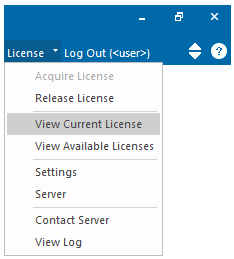
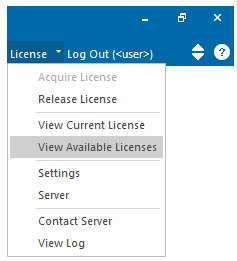
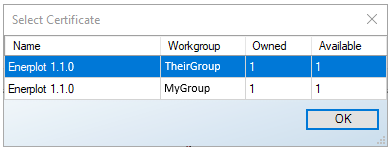
To view available licenses, ensure you are logged in to MyCentre via Enerplot, then from the License drop-down menu, select View Available Licenses. For example, in the screen shot below, this user has access to two separate workgroups; each workgroup contains (owns) one Enerplot license; and both licenses are currently available (not activated on any other machine).
|
|
License Menu |
Licenses Available |
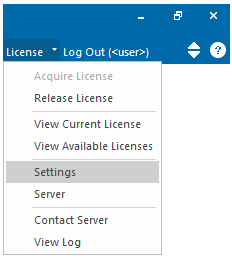
To view or modify behaviour settings, select License | Settings:
|
|
License Menu |
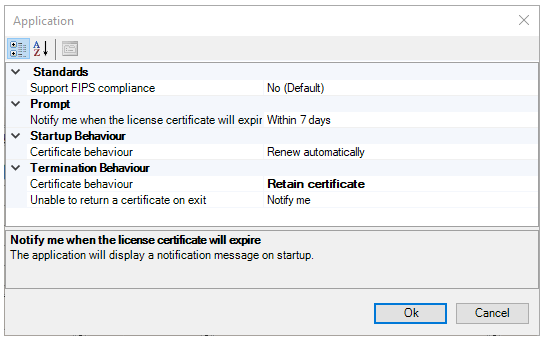
License Settings |
Four categories of licensing can be modified in the Application dialog:
Standards compliance
Prompt
Startup Behaviour
Termination Behaviour
A description of each setting may be displayed at the bottom of the dialog by clicking on the corresponding topic.
Click Ok to save changes, or Cancel to ignore changes.
Server settings may be viewed or modified.
Warning: Server settings should normally only be adjusted with assistance from our support desk, support@mhi.ca.
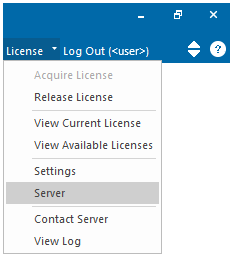
From the License drop-down menu, select Server:
|
|
License Menu |
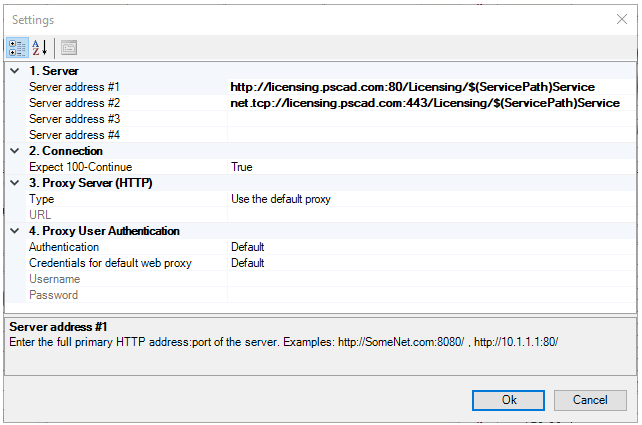
Server Settings |
Four groups of server settings can be modified in the Settings dialog:
Server addresses or URLs
Connection
Proxy Server (HTTP)
Proxy User Authentication
A description of each setting may be displayed at the bottom of the dialog by clicking on the corresponding topic.
Click Ok to save changes, or Cancel to ignore changes.
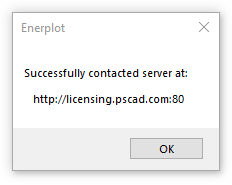
To test connection with our licensing server, from the License drop-down menu, select Contact server.
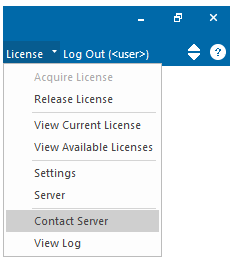
A successful connection will result in the message shown below. Certificate licensing should work.
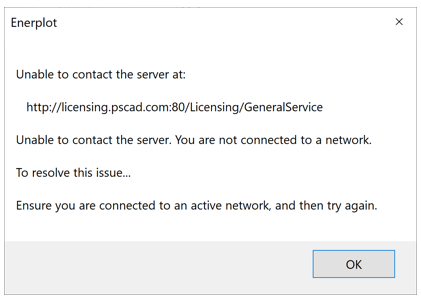
An unsuccessful test may appear similar to the screen shot below. Certificate licensing will not work. If the issue is unresolved, please contact our support desk (support@mhi.ca).
To view the login and licensing log file, from the License drop-down menu, select View Log.
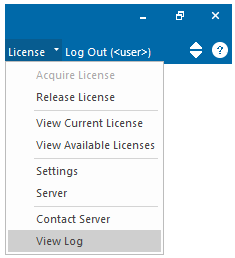
A text file showing login and licensing activities will be displayed. For any unresolved issues, this file may be saved to your machine, then forwarded to our support desk (support@mhi.ca).